It Was Right in Front of Me
I have been looking for the right place for my notes for years. Not my to-dos – those live in Things and have for a long time. Things just works for me. I open it without thinking about it. That’s the habit I wanted for my notes as well. Same for Apple Mail: always open and I just use it. As well as iA Writer, which is constantly open. Wait … well, let’s start at the beginning.
How I Got Here
A long time ago, my place was Evernote. I remember how Brendan Dawes showed it and how he uses it to me at, I think, Future of Web Design. For a while it was great. But over the years it got more and more features I never asked for, it got slower, it got heavier and it got really expensive for what I actually used it for. At some point it felt like carrying a whole office around just to write down a name.
So I moved to Notion. Everybody seemed to use it and I am on a cheap plan – $48 a year. I built databases for my events, a speakers pool, a pool of links for the newsletter, drafts for blog posts. It all looked very organised. Somehow.
But I never felt at home there. Honestly. I saw others I work with living in Notion and loving it and I just didn’t get warm with it. When I recently took a closer look at my workspace, it was a bit embarrassing: every page was a database, and inside those databases were … simple bullet lists and text. Confirmed speakers. Asked speakers. Want to ask. A list of special things we could do at the next event. That’s it. All the database machinery sat between me and a bullet list.
So I started looking again recently. I looked at a few options:
- Poznote, a free, open-source notes app you can host yourself. I could even run it on my server at mittwald. But it’s a web app, and it comes with Kanban boards, whiteboards, a calendar and an AI assistant. That sounded like Notion again, just self-hosted.
- Obsidian, which is free and works with plain Markdown files in folders. Very close. But also a rabbit hole of plugins and themes.
- Bear, which is beautiful and calm and feels a lot like Things. $30 a year. From the look it was my favourite. But it organises everything with tags in its own library, not with folders.
And then, while comparing all of this, I remembered that I use iA Writer constantly. Every day. For my newsletter, for blog posts on all my websites with Kirby, for talks. I looked into the options it would give me to build a folder structure I need, which I – to be honest – never used so far. I really only use it to write everything. And after a bit of research and sitting down to think about how I could use all this, well, there it was! The solution had been sitting right in front of me the whole time. ;)
Why Folders Work for Me
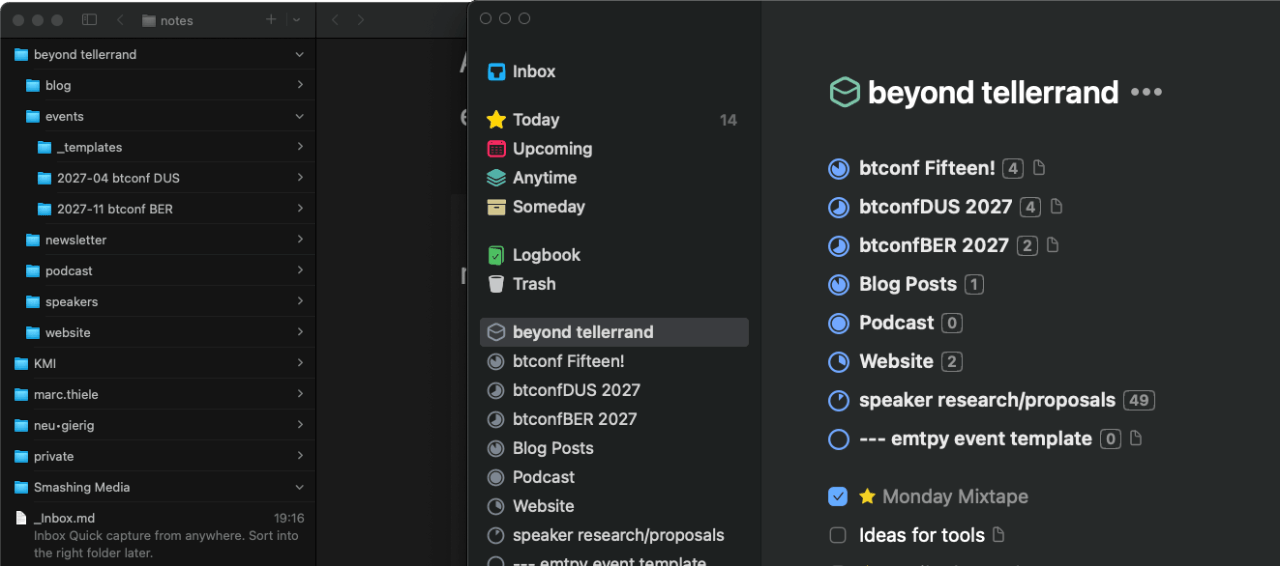
When I looked at how I organise everything else, the pattern was obvious. In Finder, every event has its own folder – 2027-04 btconf DUS, 2027-11 btconf BER – with subfolders for speakers, hotel, partners, venue and so on. In Things, I have areas (beyond tellerrand, neu•gierig, marc.thiele …), projects inside them (btconfDUS 2027) and headings inside those (Speakers, Hotel, Partners, Venue …). Same structure. Everywhere.
I think in folders. Apparently I always have, it seems. ;)
And my newsletter? I already write every issue as a Markdown file in a folder. 2026-0178.md, 2026-0179.md and so on.
So the answer was simple: plain Markdown files, in folders that look exactly like my Finder and my Things, opened in the app I already use every day. No database. No lock-in. No new habit to build. If iA Writer disappeared tomorrow, my notes would still be there, as ordinary text files any app can open. And it costs nothing extra.
The Setup, Step by Step
Here is exactly what I did, in case you want to try it yourself. It takes about 20 minutes.
1. Create One Notes Folder
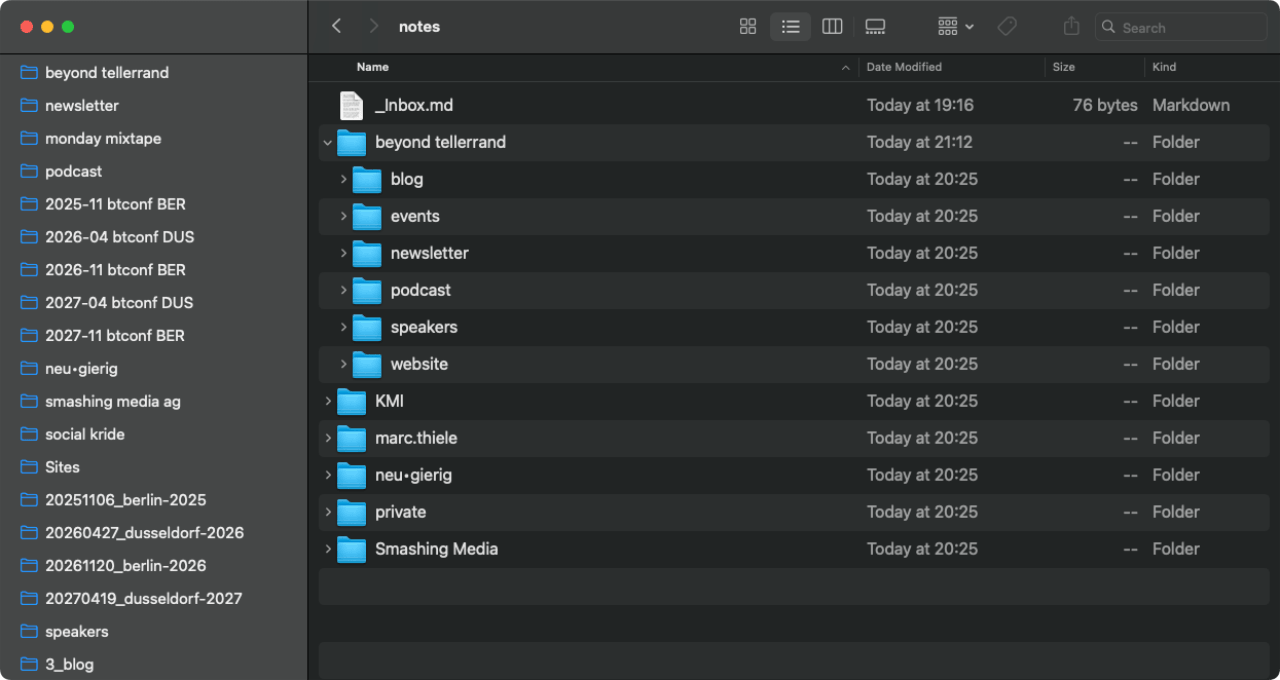
One folder, not a notes folder inside every project. I tried to think it through with notes inside each event folder, but then speakers who move from one event to another, newsletter links and loose ideas have no real home. One place means one search across everything.
I put mine at the top level of iCloud Drive. My first idea was Dropbox, right next to my beyond tellerrand folder. That worked perfectly on the Mac, but the iPhone simply refused to see the folder. More on that later.
2. Mirror Your Existing Structure
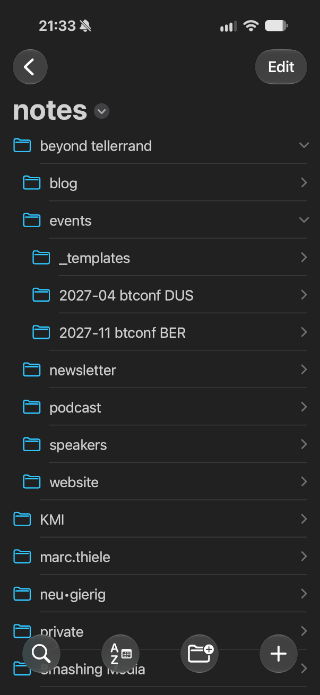
Inside notes, I created the same structure I have in Things. Areas become folders, projects become subfolders, and the event folders use the same names as in Finder:
notes/
  _Inbox.md
  beyond tellerrand/
    events/
      _templates/
      2027-04 btconf DUS/
      2027-11 btconf BER/
    speakers/
    newsletter/
    blog/
    podcast/
    website/
  neu•gierig/
  marc.thiele/
  Smashing Media/
  KMI/
  private/
Same names everywhere means I never have to think about where something goes.
3. Add the Folder to iA Writer
This is the one step that confused me for a moment. iA Writer only treats files as part of its Library if their folder is added as a Location.
- Open a window first: press ⌘N for a new document. The Library lives in the sidebar of a document window, and Go › Add Location… stays greyed out without one.
- Show the Library sidebar (the button at the top left).
- Hover over Locations and click the little +. Or simply drag the
notesfolder from Finder onto Locations. - Delete the empty document you just created.
If you ever see a banner saying “You’re editing a document outside iA Writer Library”, double check, if your location changed to, for example, “On my Mac” again. Don’t simply click “Move to On My Mac” then. It would move your file out of your notes folder.
4. Tidy Up the Library View
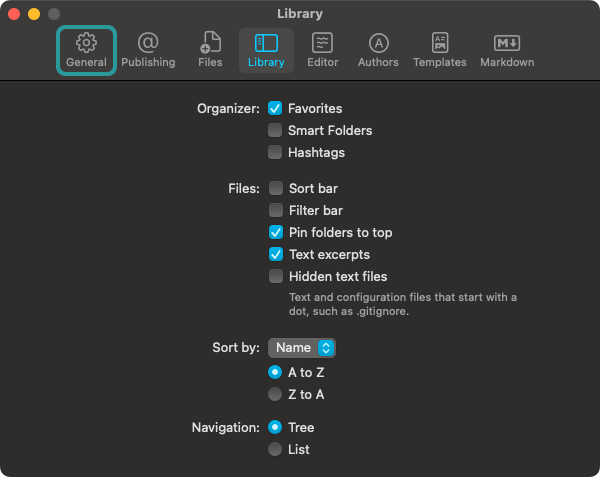
The default view looked messy to me. These settings in iA Writer › Settings › Library made the difference:
- Navigation: Tree. Folders expand in place, just like in Finder.
- Sort by: Name instead of Date Modified. Otherwise everything jumps around every time you edit a file.
- Pin folders to top: on. Folders stay above loose files.
- Smart Folders and Hashtags: off. I don’t need them, folders do the job.
- Text excerpts: on or off, as you like. Off makes the list more compact.
5. Hide the Sidebar
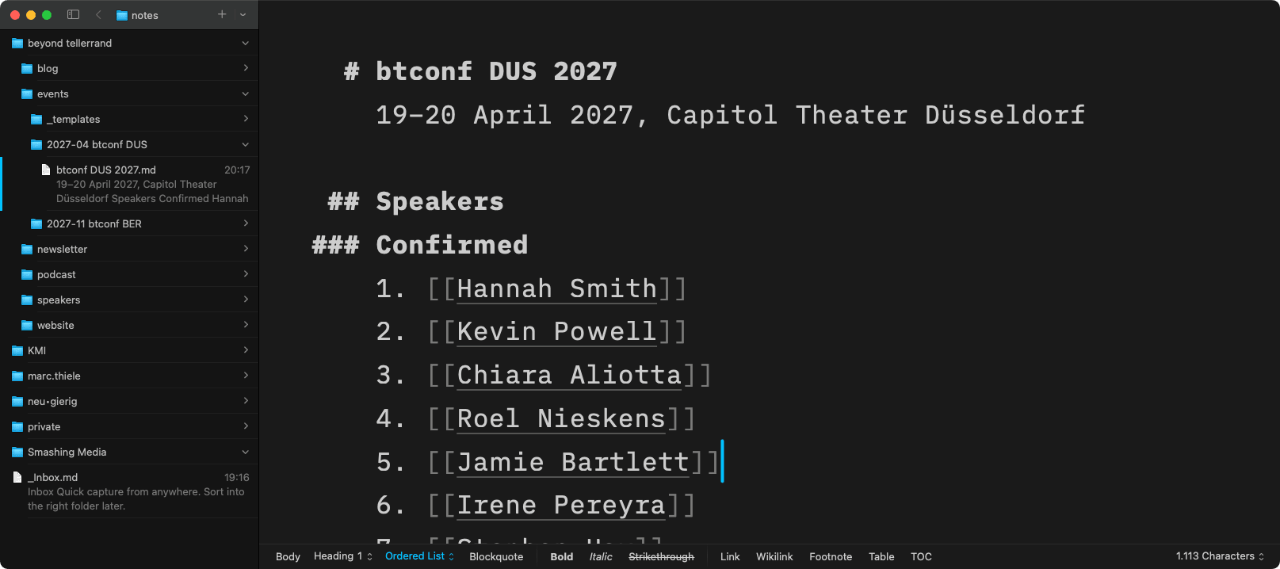
“On My Mac” can’t be removed from iA Writer. But you don’t have to see it. Drag the divider between the sidebar and the file list all the way to the left or choose View › Hide Organizer and it’s gone. What’s left is my folder tree and my text. Nothing else.
6. Make It Look Less Like Code
Under Settings › Editor › Typeface, switch from Mono to Duo or Quattro. Quattro looks the most like a regular notes app. Text size can be changed with ⌘+ and ⌘−.
7. One Note per Event, with the Same Headings as in Things
Every event gets one main note, with exactly the headings I use in the matching Things project. I keep a copy in _templates and duplicate it for every new event:
# btconf DUS 2027
19–20 April 2027, Capitol Theater Düsseldorf

## Speakers
### Confirmed
### Asked
### Want to Ask / Check
## Special Features
## Assets & Media
## Hotel
## Partners
## Exhibition
## Side Events
## Venue
## Technical Stuff & Equipment
## Workshops
## Website
8. Link Speakers Instead of Copying Them
Ouh, this is my favourite part. Every speaker gets their own note in speakers, with research, links and the contact history. In the event note, I just write their name in double brackets: [[Jamie Bartlett]].
To follow a link, put the cursor on it and press ⌘↩, or right-click and choose “Open Wikilink”. A speaker exists exactly once and can move from Düsseldorf to Berlin without me copying anything.
To create a new speaker note, select the speakers folder, press ⌘N and name the file exactly like the link. New files always land in the folder that’s selected.
9. An Inbox for Everything Else
_Inbox.md sits in the notes folder root, outside all the subfolders. Every link, every idea, every name I hear goes in there first. Once in a while, I sort it into the right folder. Same idea as the Inbox in Things.
For the newsletter, there’s one note, Newsletter links, with sections for Tools, Useful articles and Inspiration. Once a link is in an issue, it moves down to “Used”, with the issue number.
10. But What About the Phone?
In iA Writer on the iPhone add the same notes folder as a Location: iCloud Drive › notes. Done. Now everything I collect on the go ends up in the same inbox.
A word of warning about Dropbox: my notes folder showed up in the Dropbox app, but not in the iPhone’s file picker. Not after refreshing, not after a restart, not even when searching for it. iCloud Drive just works, because iA Writer supports it natively. Don’t ask me why Dropbox did not like me … no idea.
Bonus: A Shortcut from Finder
If you want to jump from an event folder in Finder to its notes: right-click the event folder inside notes, choose Make Alias, and drag the alias into the matching event folder in Finder. The notes still live in one place, but you can reach them from both sides.
So, Is This the Best Solution for Me?
Well, I honestly don’t know yet. I am a visual person and plain text in a writing app is a different feeling from Notion’s or Bear’s colourful interface. And there are small things. The folder list in iA Writer, for example, can’t be made bigger. Or at least I don’t know how (if you do, send me an email).
But I am going to test it for the next few weeks: do I open it without having to remind myself? Like I do with Things? If yes, fantastic! If not, I can point Obsidian at the very same folder and try it. Nothing is lost. That’s the beauty of plain files.
I’ll let you know how it goes.
And I’m curious: how do you organise your notes? Do you also have an app that everyone loves and you just can’t get warm with?
Leave a comment