In my last post, I wrote about how iA Writer became my notes app. But iA Writer has always been the place where I write everything else as well: the newsletter, talks and blog posts for all my websites. And every time I hit preview, I saw … iA Writer’s default template. Nice, clean, but not my websites.
So I sat down and built my own preview templates. One for beyond tellerrand, one for marcthiele.com and one for neu•gierig. Same fonts, same colours, same headlines as on the real sites. Now I see a post the way it will look once it’s published. Before it’s published.
And the best part: if you can build a website, you can build an iA Writer template. It’s basically HTML and CSS. That’s it. ;)
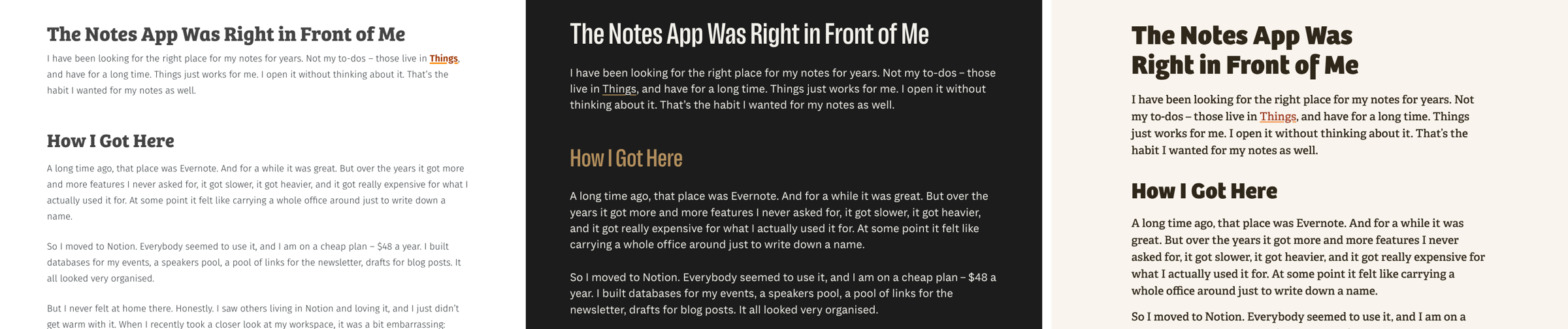
My three templates: marcthiele.com, beyond tellerrand and neu•gierig
What a Template Actually Is
An iA Writer template is a so-called bundle. It looks like a single file in Finder, but it is really a folder ending in .iatemplate. Right-click it and choose Show Package Contents and you see what’s inside. This is my beyond tellerrand template:
The only file you really need is document.html. Title page, header and footer are optional. They are only used when you export a PDF or print.
Step 1: Start with iA’s Example
You don’t have to start from zero. iA has an example template on GitHub, together with a pretty good documentation of everything a template can do. Download it, duplicate Example.iatemplate and rename it. That’s your starting point.
Step 2: Tell iA Writer Who You Are
Info.plist describes your template. It looks a bit scary if you’ve never seen a property list before, but it’s “just” XML and any text editor can open it. These are the important parts of mine:
The most important bit that is more or less the engine of everything is data-document. iA Writer takes your Markdown, turns it into HTML and puts it right inside that element. Everything else is up to your CSS.
Step 4: Bring Your Website’s CSS
I opened the stylesheets of my websites and took what I needed: fonts, colours, headline sizes, links, lists, quotes.
First the fonts. Copy the .woff2 files into a fonts folder inside Resources and load them with relative paths:
And then the details that make it feel like beyond tellerrand. The narrow Lektorat Display for headlines, gold H2s, gold list bullets and gold underlines for links:
You could copy your whole website CSS, but don’t! It bloats up the file size and is not needed. Navigation, grid, footer … none of it matters here. You only need the parts that style text.
Step 5: Dark Mode or Not
When iA Writer runs in dark mode, it adds the class night-mode to the html element. So you can define a dark version of your template:
For beyond tellerrand that’s easy: the website is dark anyway, so the template is always dark. marcthiele.com and neu•gierig, on the other hand, don’t have a dark mode (yet). So I wanted them to stay light, always.
Removing the dark styles wasn’t enough, though. My preview still showed up dark. Only when I forced the light colours, even in night mode, did it work:
Not the most elegant CSS, I know. But it works. ;)
Step 6: Print and PDF
Somehow a bonus and I really rarely use printing these days, but if so, a dark template is lovely on screen, but nobody wants to print a black page. So for beyond tellerrand, I switch to white paper when printing or exporting a PDF:
The same works for the document title in the header, with data-title.
Step 7: Install and Switch
On the Mac, double-click the .iatemplate file. That’s all. In the preview, you can then switch templates via the toolbar or View › Template.
On the iPhone, put the template as a ZIP file into iCloud Drive and tap it in the Files app. It opens in iA Writer and gets installed.
Things I Learned on the Way
iA Writer copies the template when you install it. Changing the original file afterwards does nothing. To update a template, delete the old one under Settings › Templates, quit iA Writer completely with ⌘Q and install the new version. Otherwise the preview happily keeps showing you the old one.
Be careful with fonts. Fira is free, but Lektorat, Adelle and Bree are commercial fonts. Using them in my own templates is fine for me, but you should not share those templates with the fonts inside.
Kirby fields show up as text. My blog posts are Kirby text files, so Title:, ---- and Date: appear as normal paragraphs in the preview. The article text below looks exactly like it will on the site, though, and that’s what I care about. It would be great to convert the Kirby text like the tag to show the images, but well … you can’t have everything.
Templates aren’t remembered per document. iA Writer doesn’t switch templates per file or folder. When I jump from a beyond tellerrand post to a marcthiele.com post, I switch by hand. Two clicks. I can live with that.
Your Turn
If you write for your own website in iA Writer, give it a try. It took me one evening for three templates, and now my posts look like home and I don’t need to test it on my local server anymore.
And if you build one, I’d love to see it. Send me an email.
Leave a comment